
 Deutsch
 Dansk
Dansk Suomi
Suomi Latviešu
 Lietuvių
 Norsk bokmål
 polski
 Русский
 Svenska
No products in the cart.
Uncategorized
How to Connect an EV Charger to Wi-Fi: A Step-by-Step Guide
08
Oct
Oct
What if your EV charger’s Wi-Fi issue has nothing to do with the password? The steps for how to connect ev charger to wifi vary by model, app, and setup method. Following instructions for a different charger can send you in circles, so start by identifying your exact model.
It’s frustrating when a charger won’t find your home network, especially if you’re unsure whether charging will still work. Wi-Fi typically supports connected features such as remote monitoring or scheduling, but what happens when it drops depends on the charger and its settings. The network connection and the electrical connection that powers your vehicle are separate.
This guide takes you through a practical setup sequence: find your charger’s official instructions, use the correct manufacturer app or setup interface, and verify the connection before changing router settings. You’ll also learn how to troubleshoot network visibility, signal strength, and login details, and what to check in your model’s documentation if the usual fixes don’t work. Pairing steps and features vary, so follow instructions for your exact charger.
Key Takeaways
- Wi-Fi features and pairing steps vary by charger model. Start with its official manual and manufacturer app.
- For how to connect ev charger to wifi, use a clear sequence: identify the charger, prepare the app, check the network, pair, then verify the connection.
- If pairing fails, check the network name and password, signal strength, phone connection, and charger status before changing router settings.
- Guest networks, device limits, and managed-router settings can affect setup. Check the network configuration before changing unrelated settings.
- Confirm the charger’s online status and identity in the app, then check its documentation for supported app functions and offline behavior.
What Wi-Fi EV Charging Does and Doesn’t Do
Wi-Fi connects a charger to a network for supported digital features. It is separate from the electrical connection that delivers power to your vehicle. That distinction matters: a charger may have power while its network connection is unavailable, or it may be online without being ready to charge. Each connection has a different purpose.
Wi-Fi may let a charger communicate with a manufacturer’s app and support features such as remote status checks, charging controls, or software updates. What’s available depends on the charger model and software. For a broader explanation of charging methods and equipment, see this Electric vehicle charging overview. Check your exact model’s documentation to see what its network connection supports.
What can a Wi-Fi-connected EV charger let you do?
Think of Wi-Fi as a communication path, not a power upgrade. Depending on the model, a connected charger may send status information to an app or allow selected remote controls. A button or indicator on the unit may provide local feedback or control, while app functions may rely on network access. Don’t assume your charger has a feature just because another model does.
- App communication: Check the manual or app help to see whether your model pairs with a manufacturer app and what information the app displays.
- Remote status or controls: Confirm which functions are available and whether they require an internet connection or only a local link.
- Software features: Check the charger’s documentation to see whether updates or other connected functions are supported.
Pairing methods, supported Wi-Fi bands, app menus, and available controls vary by manufacturer and model. A setup guide for a different charger may show different steps or describe functions your unit doesn’t have. Start with the model name and product information shown on the charger or in its documentation.
Does a charger need Wi-Fi to charge an EV?
There isn’t one answer for every charger. Whether charging can start, continue, or follow saved settings when Wi-Fi is unavailable depends on the model, its configuration, and the feature in use. Don’t assume that losing Wi-Fi will stop charging, or that charging will continue as usual. Check the manufacturer’s guidance for your exact unit.
Search the user manual or the manufacturer’s official app help for terms such as “offline operation,” “network connection,” or “charging without internet.” Confirm that the information applies to your exact model and software, and note any difference between Wi-Fi, an app connection, and the charger’s electrical supply.
This is also a useful first step before learning how to connect ev charger to wifi: identify which connected features you want and confirm that your charger supports them. Then follow its pairing instructions instead of changing settings based on a generic guide. That keeps troubleshooting focused on the charger, app, and network functions that apply to your setup.
How to Connect an EV Charger to Wi-Fi Step by Step
Use your charger’s setup instructions as a roadmap. Pairing flows differ, so the buttons, app screens, and confirmation signals depend on your model. The sequence below explains how to connect ev charger to wifi without guessing at controls or changing router settings you may not need to touch.
Prepare the charger, phone, and network
Before pairing, gather three details: the charger’s exact model, the manufacturer app named in its current documentation, and the Wi-Fi network name and password. Keep your phone near the charger and, when practical, the router during setup. A stronger signal can make it easier to complete the initial connection.
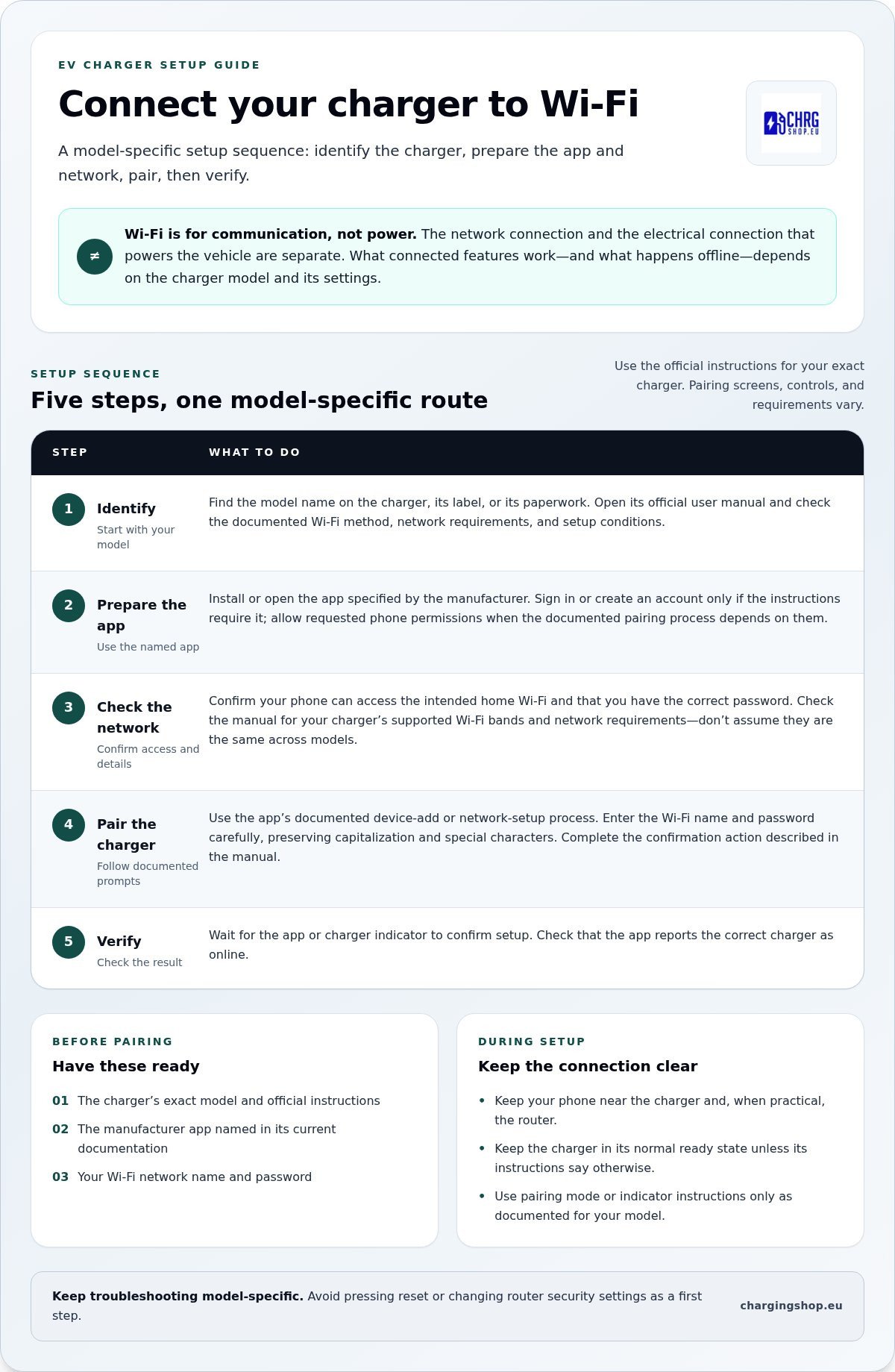
- Step 1: Identify the charger. Find the model name on the unit, its label, or its paperwork. Open that model’s official user manual and note the documented Wi-Fi method, supported network requirements, and any setup conditions.
- Step 2: Prepare the app. Install or open the app specified by the manufacturer. Sign in or create an account only if the instructions require it. Allow requested phone permissions when the documented pairing process depends on them.
- Step 3: Check the network. Confirm that your phone can access the intended home Wi-Fi and that you have the correct password. Look up the charger’s supported Wi-Fi bands and network requirements in its manual. Don’t assume they’re the same for every model.
Keep the charger in its normal, ready state unless its instructions specify another setup condition. If the manual requires pairing mode or a particular indicator, follow those directions exactly. Avoid pressing reset or changing router security settings as a first step.
Pair the charger and confirm the connection
Once the basics are ready, follow the manufacturer’s app instructions. Labels and prompts vary by model, so use the documented steps rather than looking for a screen name from another charger’s tutorial.
- Step 4: Pair it. Use the app’s documented device-add or network-setup process. Enter the Wi-Fi name and password carefully, preserving capitalization and special characters. Complete the confirmation prompt or pairing action described in the manual.
- Step 5: Verify the result. Wait for the app or charger indicator to confirm setup. Check whether the app reports the correct charger as online. If it remains offline, note the displayed status or error before retrying, then use the model-specific troubleshooting instructions.
For context, the Federal EV charging standards address requirements for U.S. federally funded public charging infrastructure, not Wi-Fi pairing steps for every home charger. Your model’s manual is the practical source for setup.
After setup, record which network the charger joined and the status shown in the app. If you’re comparing equipment for a future setup, explore EV charging hardware and review the connectivity documentation for each model.
EV charger Wi-Fi troubleshooting: match the symptom to the fix
Start with simple checks before changing router settings: confirm the network name and password, check the phone’s Wi-Fi connection, move closer to the router if practical, and note the charger’s status lights or messages. Then match the problem to the symptom below. For how to connect ev charger to wifi, use the charger’s current manual for model-specific network or reset steps.
| Symptom | First checks | Next move |
|---|---|---|
| Network not found | Check router distance, obstructions, and whether other devices can see the network name. | Verify in the charger’s documentation that it supports the network band and visibility settings. |
| Credentials rejected | Re-enter the network name and password carefully. Check capitalization and special characters. | Confirm that you selected the intended network and that its security settings meet the charger’s documented requirements. |
| Pairing times out | Keep the phone and charger near the router. Check the phone’s connection and the charger’s status indicator. | Retry the official pairing flow, following any documented timing or confirmation prompts. |
| Connection drops | Check whether other devices also lose Wi-Fi. Note recent router, password, or network-name changes. | Check signal strength and charger status, then follow the model’s reconnection guidance. |
Why does the charger not find my Wi-Fi network?
A weak signal, walls or other obstructions, or a hidden network name can prevent discovery. Check whether the router is broadcasting the network and whether nearby devices can see it. Wi-Fi band support varies by charger: don’t assume a model works with 2.4 GHz, 5 GHz, or both. Confirm supported bands and network requirements in the manufacturer’s current documentation before adjusting the router.
Router security modes, guest-network isolation, device limits, and managed-network restrictions can also affect discovery or pairing. Treat each as a possibility, not a diagnosis. Change a setting only if the charger documentation calls for it. Before making an adjustment, record the original value, change one setting at a time, and test again. This makes it easier to undo an unsuccessful change.
What if pairing succeeds but the charger goes offline?
First, check another device on the same Wi-Fi. If it’s offline too, investigate the home network before treating the charger as the cause. If other devices remain connected, review router placement, signal strength near the charger, and any recent network changes. Compare the charger’s lights or status message with the meanings in its manual. Don’t infer a fault from an unfamiliar indicator.
If the connection still fails, use the manufacturer’s documented reconnect or reset procedure. Reset effects differ by model: a reset may remove network details or affect other settings. Read the instructions first, and note the current configuration where possible. Avoid repeated resets or broad router changes until you know what each step will alter.
Before reconnecting: check router settings, permissions, and charger status
Before trying again, gather the details that can pinpoint where setup is getting stuck. Wi-Fi requirements and app controls depend on your charger, so use its current official documentation rather than applying a router setting that worked for another model. This quick preflight keeps the next attempt focused and makes it easier to describe the problem if an error persists.
Before pairing again, confirm:
- The charger’s exact model and the manufacturer app named in its documentation.
- The intended Wi-Fi network name and password, copied accurately.
- The phone’s current network and any app permissions or account access the setup flow requires.
- The charger’s current status indicator and the app’s latest error message, if one appears.
- Any documented requirements for Wi-Fi bands, security settings, or pairing mode.
Which Wi-Fi details should you check first?
Start with the basics: check capitalization and special characters in the network name and password, then confirm the phone is connected to the network you intend to use. If the router separates Wi-Fi bands or you’re using a guest network, check whether that setup supports the charger’s documented pairing method. Guest networks, device limits, and managed-router rules can restrict new devices or communication between them.
Don’t assume a particular band or security mode is required. Look up the charger’s supported bands and security settings in its exact model documentation. If the documentation recommends a router adjustment, note the original setting and change only one item before testing again.
What should you verify in the charger app?
Open the manufacturer app and check that you’re signed into the right account, the charger is associated with that account, and any permissions requested by the documented setup flow are enabled. Some pairing methods also require the phone to stay on the intended Wi-Fi network. Follow the app’s current instructions rather than switching networks mid-process.
Record the error text and the point where setup stops, such as device discovery, password entry, or the final connection check. That detail can help distinguish an app-access issue from a network or charger-status issue. Use the model-specific instructions to interpret indicators and choose the next step.
Quick checklist: Match the charger model to its manual and app, confirm the network name and password, check documented Wi-Fi requirements and app permissions, note the charger status, and record exactly where pairing fails. Then retry without making unrelated router changes.
These checks make how to connect ev charger to wifi more straightforward and reduce guesswork. Explore EV charging hardware and review the exact model’s connectivity guidance as part of your setup planning.
Get the right charger documentation and finish setup confidently
A successful pairing means more than getting through the app screens. Confirm that the charger is online, that the app identifies the correct unit, and that your model’s documentation supports the connected functions you plan to use. This final check helps distinguish a network connection from confirmation that every feature is available.
- Online status: Check the connection state shown in the manufacturer app or charger interface.
- Correct charger: Confirm the app is displaying the intended unit, especially if more than one charger is associated with your account.
- Supported functions: Review the manual or app help to see which controls and features are available for this model.
Keep a note of when you completed setup, the network name used, and any status or error message you encountered. Don’t record your Wi-Fi password somewhere unsecured. If the charger later goes offline, these details can help you identify whether anything changed without repeating every setup step.
When should you stop troubleshooting and consult model documentation?
Return to the exact model’s official manual or app help if its menus, indicator lights, or error codes don’t match the steps you’re following. Look for sections covering Wi-Fi setup, connection status, offline operation, and reset instructions. Avoid undocumented resets or electrical changes while diagnosing a network issue. Reset effects differ by model, and a reset may affect settings beyond the network connection.
Use charger-specific instructions when a prompt or indicator is unfamiliar. If the manual’s steps don’t resolve the issue, preserve the error message and note where setup stops. This gives you a clearer starting point for further model-specific support.
Choose a charger with setup information that fits your needs
If you’re comparing chargers, treat connectivity as a model-specific feature, not a standard promise across a product range. Check each model’s current specifications and official documentation for supported network connections, app functions, setup requirements, and offline behavior. A clear match between documented features and the controls you want can make setup easier to understand.
For example, readers considering the V2C Trydan 22kW can use its relevant home charging guide alongside the current manufacturer documentation. Don’t assume its app flow or connectivity features apply to other models. Charging Shop sells several charger options, including the V2C DENKA 20kW DC Wallbox, Alfen Single Pro Line 22kW, and ABB Terra AC. Review connectivity details for the exact model you’re considering.
With the right documentation, how to connect ev charger to wifi becomes a model-specific task rather than guesswork: follow the official pairing steps, confirm the online status, and check which functions your app supports. Explore Charging Shop’s EV charging hardware to compare options and find the documentation that fits your setup needs.
Make your next charging setup a confident one
Now you can approach how to connect ev charger to wifi with a practical next step: keep the charger’s official documentation close and use it to guide future setup or network changes. Connectivity features are model-specific, so compare what each charger’s documentation says instead of assuming one app or pairing method fits every unit.
If you’re planning a new setup, focus on the functions you want and the information that will help you manage charging day to day. Charging Shop sells V2C, Alfen, ABB, and DENKA charging hardware, along with CHRG Network access for charging infrastructure management. Compare the details for the option that suits your needs.
Explore EV charging hardware at Charging Shop and take the next step toward a setup that fits your charging plans.
Frequently Asked Questions
How do I connect my EV charger to Wi-Fi for the first time?
Use the setup instructions for your exact charger model and the manufacturer’s app. The steps for how to connect an EV charger to Wi-Fi can differ, including whether the app needs an account or the charger needs a specific setup mode. Before starting, make sure you can access the intended network and have its password. After pairing, check the app’s device details to confirm it shows the charger you just configured.
Why will my EV charger not connect to Wi-Fi?
A wrong password, weak signal, unsupported network settings, or an app permission issue can interrupt setup. Check whether the phone itself can use the network and whether the charger is displaying a status or error indicator. If the app finds the charger but can’t complete the connection, note the exact step where it fails. Use the manufacturer’s guidance to interpret the message before changing router settings or repeating setup.
Does an EV charger need 2.4 GHz Wi-Fi?
Not necessarily. Wi-Fi band support varies by charger, so check the exact model’s specifications or setup instructions rather than assuming it needs 2.4 GHz. If your router combines bands under one network name, look for manufacturer guidance on whether that arrangement works during pairing. Don’t split bands or change router settings just to test a guess. First confirm the charger’s supported bands and follow its stated connection method.
Can I connect my EV charger to a guest Wi-Fi network?
Possibly, but guest networks may restrict communication between connected devices or block certain local setup steps. Whether that prevents pairing depends on how the charger and app communicate and on the router’s guest-network rules. Check the charger documentation for network requirements, then review your router’s guest-network settings. Don’t disable restrictions across the whole network without understanding the effect. If you use a guest network, confirm the charger remains reachable in the app after setup.
Can my EV charger charge if the Wi-Fi is down?
It depends on the charger, its settings, and how you start or schedule charging. A Wi-Fi outage doesn’t by itself tell you whether charging will start, continue, or follow a saved schedule. Check the manual’s offline-operation guidance for your exact model. If you need to rely on charging during an outage, review that information beforehand and note any local controls or indicators the manufacturer says you can use.
How do I reconnect my EV charger after changing my router?
If you changed the network name or password, the charger may need its Wi-Fi details updated through the manufacturer’s documented app flow. If you kept both the old name and password, check the app’s connection status before starting a new pairing. A replacement router can also use different settings, so compare its configuration with the charger’s stated requirements. Avoid a factory reset until you’ve read which settings it may erase.
Is it safe to connect an EV charger to Wi-Fi?
Connecting over Wi-Fi can be part of normal charger setup, but secure your home network and account. Use a strong, unique Wi-Fi password, limit app access to people who need it, and follow the manufacturer’s guidance for software updates and account security. Avoid sharing login details or using an unsecured network. For a shared or managed network, understand who controls access and which devices can communicate before pairing the charger.
